Based on your organizations requirements, you can create custom asset types to supplement the default asset types (Business Term, Business Policy, and Business Rule) available in the Business Glossary Manager.
To add custom asset types, follow these steps:
-
Go to Application Menu > Settings > Business Glossary Manager.
The Business Glossary Manager Settings page appears. By default, it opens the ASSET TYPES settings.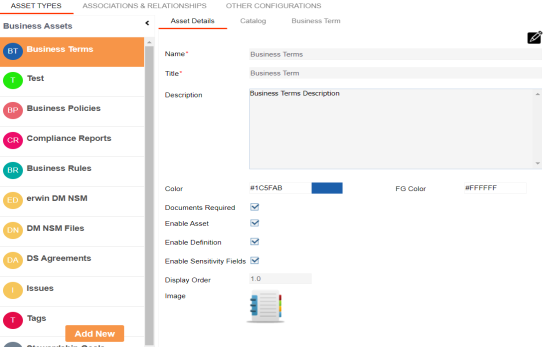
- In the Business Assets pane, click Add New.
The New Asset Type page appears.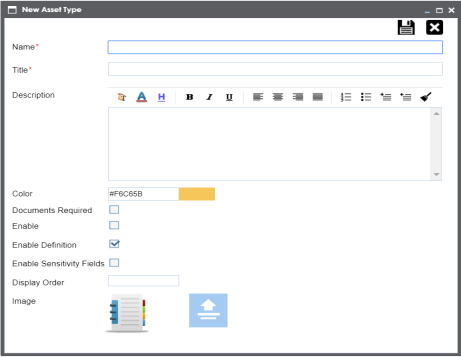
- Enter appropriate values to the fields. Fields marked with a red asterisk are mandatory.
Refer to the following table for field descriptions.Field Name
Description
Name
Enter a name for the asset type. This is used as the display name in the Business Assets pane on the Business Glossary Manager Settings and Business Glossary Manager pages.
Title
Enter a name for the <Asset Name> tab of the asset type's settings.
Description
Enter a description of the asset type.
Color
Select a color to associate it with the asset. In the Business Glossary Manager, the asset type is displayed in the selected color.
Documents Required
Select whether documents can be attached to the asset type.
Enable
Select whether the asset type is enabled in the Business Glossary Manager.
Enable Definition Select whether to enable the Definition field for the asset type in the Business Glossary Manager. Enable Sensitivity Fields Specifies whether the sensitivity fields for the asset type are enabled in the Business Glossary Manager.
There are three sensitivity fields:
- Sensitive Data Indicator (SDI): Specifies whether the asset is sensitive.
- Sensitive Data Indicator (SDI) Classification: Specifies the SDI classification of the asset. For example, PHI.
- Sensitive Data Indicator (SDI) Description: Specifies the description of the SDI classification. For example: Protected Health Information.
Display Order
Enter the number at which the asset type is available in Business Glossary Manager > Browser pane.
Image
Drag and drop a picture to represent the asset type or click
 to browse and upload a picture.
 - Click
 .
.
The asset type is added to the Business Assets pane. Also, it is available in the Business Glossary Manager if you selected the Enable check box. For more information, refer to the Using Business Glossary Manager topic.
|
Copyright © 2022 Quest Software Inc. |